 COME
COMEYour First COME Session: A Route through the Menus
Begin with content browsing, then use account tools, preferences and help only for the task you need. The visible COME menus separate those actions rather than putting them all behind a download button.
Browse content from Explore
Explore is a broad starting area, while Casino, Fantasy, Rummy and Sports are separate category tabs. Choose the area matching your interest before opening individual entries. A sports-related question belongs with the relevant sports section, while a named game can be located through its category or cover.
The cover identifies the title rather than its complete rules. Ludo uses a die and coloured pieces; Mines Originals uses a gem and mine. Read the selected activity's information for controls, scoring and participation conditions.

Locate your account tasks
Account, Transactions and Game History appear separately in the menu. Use the section that fits your question: the account being used, a transaction record or a game activity record. Keep the date and relevant entry when asking about a past action.
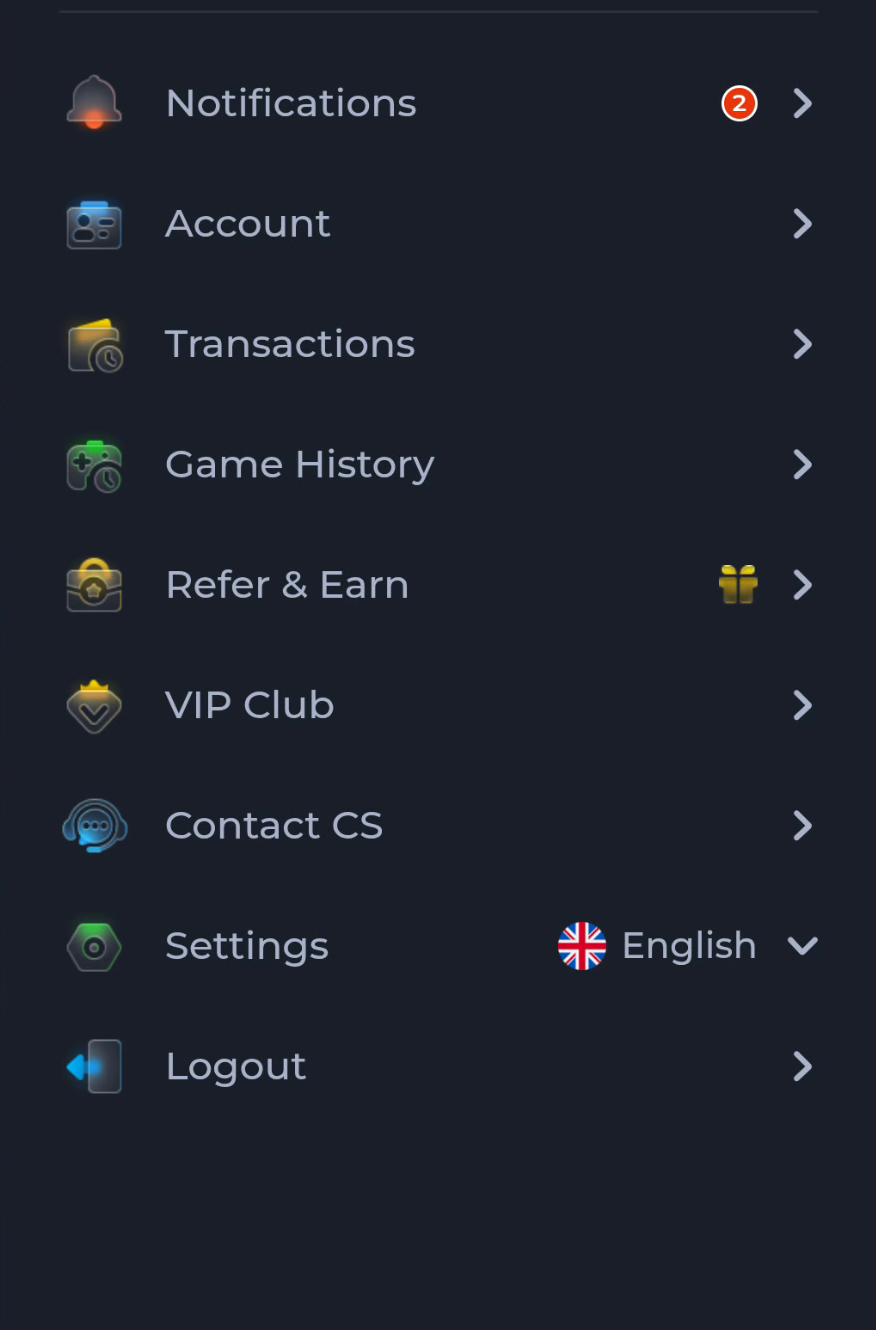
If you already have an account, use its existing-access route rather than creating another one to retrieve history. A new installation does not automatically migrate records or resolve a recovery problem.
Adjust a preference deliberately
Settings shows Language, Check Update, Music On/Off and Effects On/Off. Change one relevant preference and confirm the result. For example, a sound preference is a different task from checking an update, so do not replace the app merely to find a mute control.
Check Update concerns releases. The words Latest Version beside it are status wording, so an actual version number is still needed for a comparison with an offered package.
Read a reward with its conditions
VIP Club and Refer & Earn address different offers. Daily bonus minimums depend on level and claim days. Referral rewards separate sign-up from a later qualifying action and use different labels for Bonus and Cash.
Open the reward relevant to your account and read its condition before interpreting the amount. A completed download or first app opening is not automatically the qualifying action for either offer.
Use help for a specific issue
Contact CS and Customer Center provide the product-help route. General topics include password and network issues. Choose the issue that matches the stage: account access after opening, connectivity during use, or Android installation before opening.
Keep the explanation concrete and avoid sharing passwords, one-time codes or payment credentials. A useful message says what completed and what appeared next, instead of asking someone to diagnose every stage from one vague sentence.
Finish one task before starting another
For a first visit, understanding the categories and locating the help route can be enough. Do not change account settings, update the package and enter a reward activity all at once simply to explore. One deliberate task makes its result easier to recognise.
Know when to stop
A successful first session leaves you able to find content, your account records, the relevant preference and help. Use the section matching the next question rather than starting the download sequence again.