 COME
COMECOME Installed but Will Not Open: Check the First-Run Stage
If Android reported installation complete, focus first on the app-opening symptom. A loading or account problem is later than the file-download stage and should be described separately.
Confirm what Android completed
Check that the installation actually finished and that the expected app is present. A saved APK or a page saying download complete is not the same as Android reporting installation complete. If that step never finished, return to the installation guide.
Once the app is installed, open it and note exactly what happens: an immediate close, a blank screen, a connection message or an account screen. Those outcomes need different investigation. Do not summarise all of them as a broken download.
Test a connection symptom separately
If the app shows a network issue or stalls while loading online content, check whether another ordinary page loads on the same connection. A wider connection problem is useful context. When appropriate, test another normal network and note whether the symptom changes.
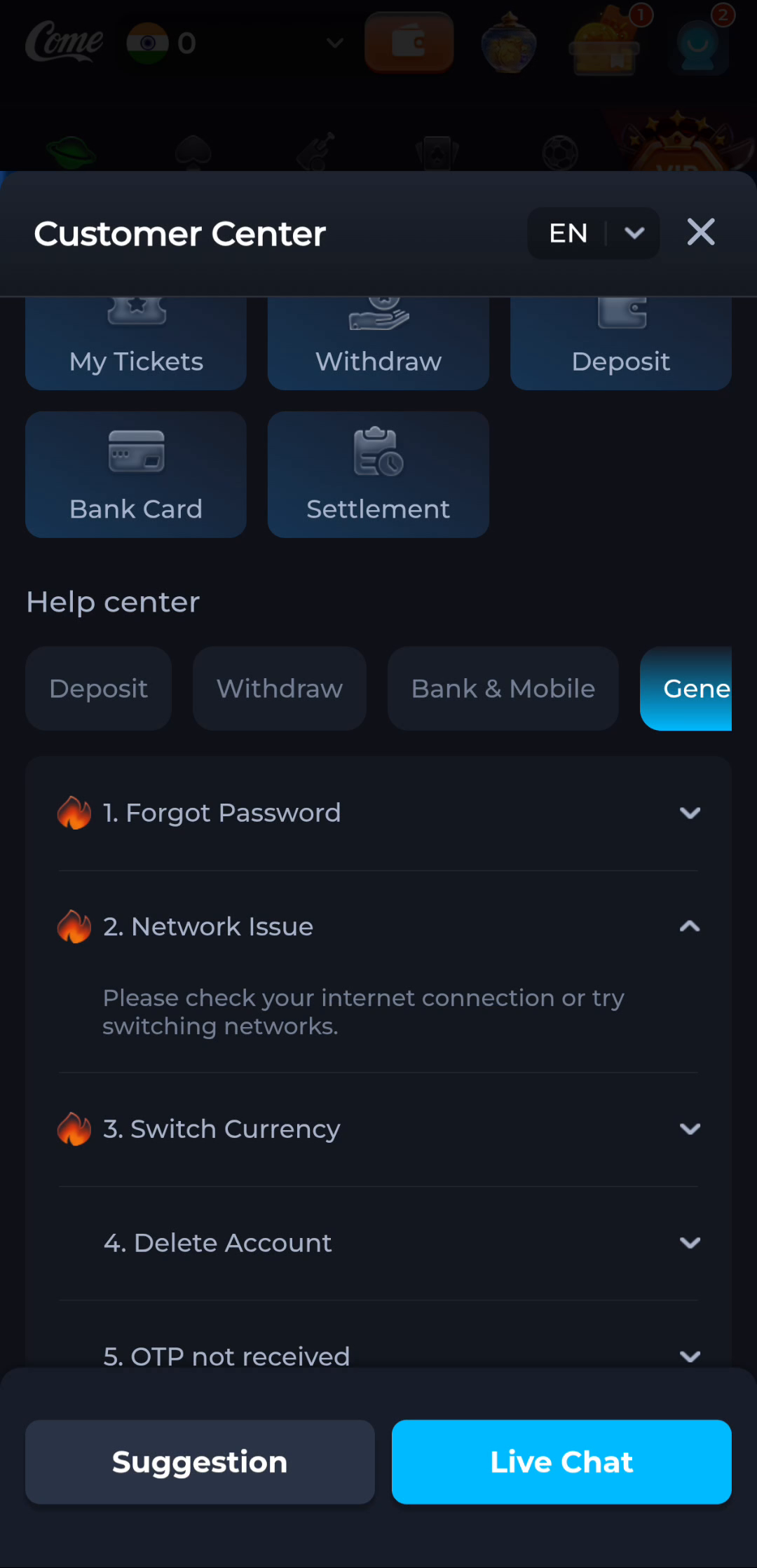
COME's Network Issue help advises checking the internet connection or switching networks. That advice concerns connectivity; it is not an instruction to disable Android protection, use an unknown proxy or replace the app from a different source.
Separate login from first opening
Reaching the login screen means the app opened far enough to present account access. Use the existing-account route if you already use COME. A password or verification problem belongs with recovery and the relevant help topic, not with deleting the package file.
Do not clear data or create a second account merely to avoid understanding the error. Preserve the route back to the account that holds the records or rewards you need.
Record repeated closing or a device message
If the app repeatedly closes, note the device model, Android version, installed app version and exact point of failure. Use the device's supported guidance and the intended service's help. A repeated close alone cannot identify the underlying cause.
If Android or Play Protect warns about harmful behaviour, stop and follow that guidance. Do not classify a security warning as a harmless first-run inconvenience.
Retry with a reason
A new attempt makes sense after a relevant change, such as restoring the connection. If the same symptom occurs under the same conditions, repeatedly downloading the same package adds little information. Keep the observed sequence for help.
For a working older installation that failed only after an update, retain that history in the explanation. Do not assume an arbitrary older APK is a safe or compatible rollback path. Identify the supported next action before changing the installation again.
Know when to stop
Success means the expected app opens and you can identify the next content or account screen. If the same failure persists, stop repeating file transfers and use the specific symptom, version and device context for help.